Complex Example – Tutorial
Version 1
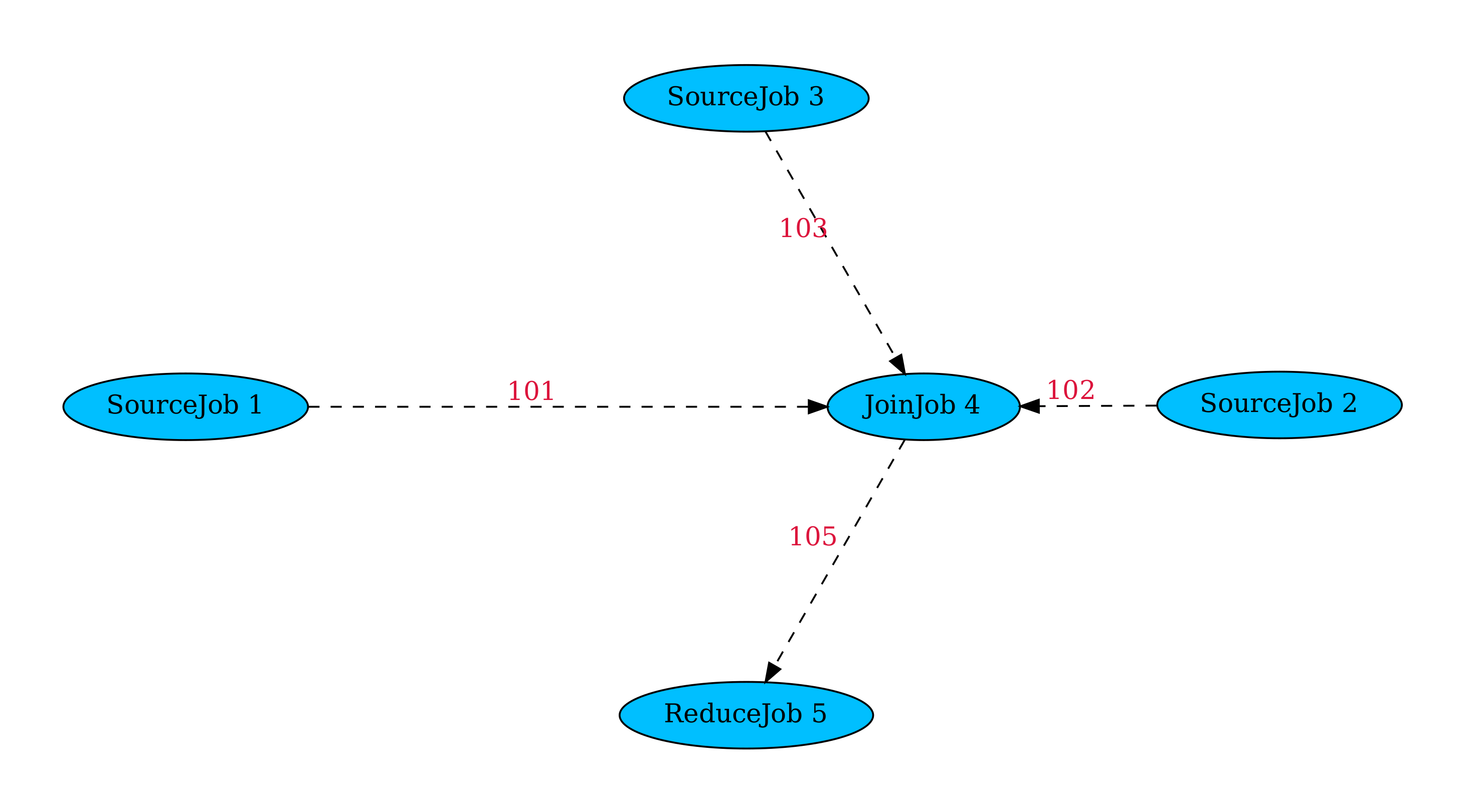 version1
Writing the first Jobs
Assuming you already started a project and network let’s start by implementing our first job:
The following is al written to jobs/jobs.py in your network.
The SourceJob:
from fission.core.jobs import PythonJob
import time

class SourceJob(PythonJob):
    def run(self):
        value = 1
        while True:
            print(f"{self.id} -> {value}")
            yield value
            time.sleep(1)
            value += 1
We start by importing PythonJob from fission.core.jobs.
This is necessary for all following jobs but I will take this as given.
We will use the time module to limit the output of our job to once per second.
Let’s have a look at the following lines one by one:
First we start a new class and inherit from PythonJob.
class SourceJob(PythonJob):
Next we override the run method, only taking self as an argument as this is a source job and there not expected to receive an data.We also initiate a counter name value to one. You may wonder why we this when run is called per pass, we’ll see in a second.
    def run(self):
        value = 1
Now we define a while True-Loop, add a small print statement for debugging purposes and yield values.So we are making a generator. This answers why we for one define a while True-Loop and why we can simply define value in run.Overriding run with a generator is only possible for source jobs (jobs with no inputs) and allows to easily keep context between calls without having to us object attributes(self).
Then we sleep for a second, increment our counter and loop for ever.
We in our flow chart above each job only has one output by this does not apply to all.How multiple outputs work will be discussed in the documentation.
        while True:
            print(f"{self.id} -> {value}")
            yield value
            time.sleep(1)
            value += 1
Lets head to the JoinJob:
class JoinJob(PythonJob):
    def run(self, in_1, in_2, in_3):
        result = in_1 * in_2 * in_3
        print(f"{self.id} -> {result}")
        return result
So this time we take 3 arguments as we have 3 inputs. We calculate the product, print it for debugging and return it.Easy enough right? So let’s make our last job:
The ReduceJob:
class ReduceJob(PythonJob):
    def run(self, L):
        result = sum(L)
        print(f"{self.id} -> Sum over {L} is {result}")
It might be a little bit confusing, that we call sum on our only argument as just return a integer in JoinJob.We will see what’s up with that when we make a custom pipe and this is what we are going to do next as our jobs are done.
Writing a custom Pipe
Now we head to pipes/pipes.py in your network.
We write:
from fission.core.pipes import PicklePipe

class ReducePipe(PicklePipe):
    BLOCK_COUNT = 5
First we import PicklePipe from fission.core.pipes.
This pipe uses the pickle stack protocol, meaning you can throw nearly any Python object at it and it will bring it to the other end.
We also define a new pipe called ReducePipe and override the class attribute BLOCK_COUNT to 5.
Setting this parameter means that FISSION buffers 5 inputs on this pipe before passing them at once as a list.
Edit config.py
I will just throw the complete config file at you and afterwards step through its:
# ----------------------------------------------------
# FISSION CONFIG FILE
# ----------------------------------------------------

from fission.core.pipes import PicklePipe
from fission.core.nodes import BaseNode

from demo_network_v1.jobs.jobs import SourceJob, ReduceJob, JoinJob
from demo_network_v1.pipes.pipes import ReducePipe

# Enter the user on the remote machines
USER = "pi"

# The directory all the action is done on the remote machines
REMOTE_ROOT = f"/home/{USER}/fission/"

# Logging
LOG_LEVEL = "INFO"
LOG_FILE = "FISSION.log"

# Enter the clients ip within the network, must be visible for nodes
CLIENT_IP = "192.168.4.1"

# Debug window
# Redirects stdout to console
DEBUG_WINDOW = True

# A list of jobs to be executed within the network.
# This can be an instance of BaseJob or any of its subclasses.
JOBS = [
    SourceJob(
        outputs=[
            PicklePipe(101),
        ]
    ),
    SourceJob(
        outputs=[
            PicklePipe(102),
        ]
    ),
    SourceJob(
        outputs=[
            PicklePipe(103),
        ]
    ),
    JoinJob(
        inputs=[
            PicklePipe(101),
            PicklePipe(102),
            PicklePipe(103),
        ],
        outputs=[
            ReducePipe(105),
        ]
    ),
    ReduceJob(
        inputs=[
            ReducePipe(105),
        ]
    ),
]

# A list of nodes to be included in the network
# This can be an instance of BaseNode or Multinode
# or a path to csv file defining nodes (see documentation)
NODES = [
    BaseNode("192.168.4.2"),
    BaseNode("192.168.4.3"),
    BaseNode("192.168.4.4"),
]

# Whether or not files (dependencies) for every job should be copied
# to every node. If not files will be copied before the job starts.
# Turning it on results in higher setup time when starting the network
# but reduces the delay in case of failover. It also demands more disk
# space on the nodes.
PRE_COPY = False

# Optional XML file defining the whole network or a part of it
# This is not recommended and only exists for specific use cases
XML_FILE = None
First we import PicklePipe to connect our SourceJobs with out JoinJob and BaseNode to define the nodes in our network.Next we import our jobs and pipe from our network, in my case this is demo_network_v1.
USER is set to “pi” in our example as we work with Raspberry Pis and this is the default user. Change this to what ever your user is.
REMOTE_ROOT defines where FISSION’s root directory should be on the remote machines, this does not have to changed.
LOG_LEVEL is a string indicating a log level.
Every level as provided in the logging module is fine but we recommend “INFO” or “DEBUG” if something is not working.
LOG_FILE is the path to the log file. By default this is “FISSION.log” in the project folder.
CLIENT_IP is the IP of the client and must be reachable by the servers.
DEBUG_WINDOW indicates whether a debug window should be launched attaching to the stdout and strerr of all jobs.This defaults to False but for this demo we set it to True.
JOBS is where it becomes interesting:You basically create an object for every job you need in this list and pass pipe objects to the inputs and/or outputs.You pass a id to the pipe (this has to be an integer) to identify it.
FISSION caches all pipe objects so calling a pipe multiple times with the same id will provide the exact same object.In addition the order in which you pass the pipes to a job matters.
So the pipe with id 101 will be passed to to the in_1 argument of JoinJob, id 102 to in_2 and so on.
The reason we picked a relatively high number for the ids is because we are going to extend this example in the documentation and having a prefix to the pipe ids helps to keep track.
If you make any mistakes like having more than one end to a pipe or only one you will receive according errors. Also once a pipe has been initiated with an id you will receive and error you try to call the same id with a different type of pipe.
NODES is just a list of BaseNodes in this case.
PRE_COPY is already explained quite extensively in its comment.
XML_FILE has a very specific use case and therefore won’t be explained at this point.
So what’s next?
Before deploying the network lets make a test run:python3 manage.py demo_network_v1 simulate
This should run without errors and show the print statements we defined earlier.The ReduceJob is set of by one “round” due to the buffering going on while checking SQN’s.Hit “Ctrl + C” to cancel the simulation.
The simulation created an additional folder in your network called “simulation”. It is cleared before each simulation so store data somewhere else before rerunning the simulation if you want to.
You will find a folder for each job named after it id.
info.txt may help to find the right one but in general they are just enumerated in the order they are define in the config’s JOBS.
There is also a additional log file how it would be created on a node with DEBUG log level.
Assuming you developed on the machine which will act as a client just run:python3 manage.py demo_network_v1 run
If you didn’t, use e.g. scp to copy the project to the client, connect to it via ssh -X user@address to allow for additional consoles to be opened, activate you venv if there is one and then execute the command.
Congratulations, these are the very basics of the FISSION framework.
All files for this example can be found under examples/demo_network_v1 in the git repository.
Version 2
In version 2 we aren’t changing too much.
First of all we move the SourceJob to the shared network and make it a bit more versatile by changing the __init__.
We will use this job for all coming versions of the demo network so it is a good idea to move it there and avoid copying it every time.
So lets copy it to shared/jobs/jobs.py and change it as follows:
class SourceJob(PythonJob):
    def __init__(self, start=1, step=1,*args, **kwargs):
        super().__init__(*args, **kwargs)
        self.value = start
        self.step = step

    def run(self):
        while True:
            print(f"{self.id} -> {self.value}")
            yield self.value
            time.sleep(1)
            self.value += self.step
This way we are able to change the start value and the step the job makes each time directly in the config.
Lets also change JoinJob to be more versatile by making it take a any amount of inputs:
from functools import reduce

class JoinJob(PythonJob):
    def run(self, *args):
        result = reduce(lambda x, y: x*y, args)
        print(f"{self.id} -> {result}")
        return result
So your number of inputs does not have to be fixed, neither do your outputs as you will see in Version 3
Feel free to run the simulation of the network or deploy it on your setup as shown in Version 1.
Remember to change the imports in the config file accordingly.
All files for this example can be found under examples/demo_network_v2 in the git repository.
Version 3
We haven’t had any good ways to retrieve data from the network, we had a bunch of prints but this isn’t really usable.This is where we want to output to multiple destination, e.g. send a copy of the data to the client for him to log it.
By default, if you return anything but a tuple it will be mapped to all outputs of a job. If you return a tuple, this tuple has to have the same length as there are outputs given.
If you need to send a single tuple just return a tuple of tuples.If you want to map a single tuple to any amount of outputs you need to use the workaround
return [my_tuple]*len(self.outputs)
This means all of our jobs already support multiple outputs, we just need add more pipes and jobs.
For collecting data FISSION provides a CSVSinkJob which will log into a column of a CSV file for each incoming pipe.
So first let’s add a return value to our ReduceJob:
class ReduceJob(PythonJob):
    def run(self, L):
        result = sum(L)
        print(f"{self.id} -> Sum over {L} is {result}")
        return result
Then head to the config an import the CSVSinkJob
from fission.core.jobs import CSVSinkJob
and change the JOBS list accordingly:
JOBS = [
    SourceJob(
        outputs=[
            PicklePipe(101),
            PicklePipe(201),
        ]
    ),
    SourceJob(
        outputs=[
            PicklePipe(102),
            PicklePipe(202),
        ]
    ),
    SourceJob(
        outputs=[
            PicklePipe(103),
            PicklePipe(203),
        ]
    ),
    JoinJob(
        inputs=[
            PicklePipe(101),
            PicklePipe(102),
            PicklePipe(103),
        ],
        outputs=[
            ReducePipe(105),
            PicklePipe(205),
        ]
    ),
    ReduceJob(
        inputs=[
            ReducePipe(105),
        ],
        outputs=[
            PicklePipe(301),
        ]
    ),
    CSVSinkJob(
        path="join.csv",
        inputs=[
            PicklePipe(201),
            PicklePipe(202),
            PicklePipe(203),
            PicklePipe(205),
        ]
    ),
    CSVSinkJob(
        path="reduce.csv",
        inputs=[
            PicklePipe(301),
        ]
    ),
]
Notice how we used two different CSVSinkJobs.
This is done because the ReduceJob produces only one output in the time the others produce 5, therefore they can’t be logged into the same CSVSinkJob.
Also we see the prefixes of pipe ids in action I mentioned in version 1.
It is way easier to track all CSVSinkJob because the have their own prefix.
So what is the benefit of using CSVSinkJob instead of just writing the results to a file in the jobs directory?
You can collect data at any output within the network, independent from failover
The data is written directly onto the client, therefore does not need to be collected after a run and the data is still accessible, even if the server that executed is not reachable.
A downside is that it has a high network load if a lot of data is sent.
You have to provide a path to for the CSV file to the CSVSinkJob.
In this case both CSVSinkJob will create a file called “join.csv” or “reduce.csv” in their own directory.
When you simulate this network you will find the two CSV files in demo_network_v3/simulation/6/join.csv and demo_network_v3/simulation/7/reduce.csv.
When running this on the network you will find them in demo_network_v3/local/6/join.csv and demo_network_v3/local/7/reduce.csv.
All files for this example can be found under examples/demo_network_v3 in the git repository.
Version 4
In this last version we want to introduce the InteractiveJob.
This jobs opens a console and let’s you send data you enter to jobs and allow you change parameters while the network is running.
But a human can’t enter information as quick as job might output, therefore we need a new concept: a optional input.This functionality is provided by the OptionalMixIn but there is a optional pipe predefined in fission.core.pipes.
What we want to do next is to add a additional input to JoinJob that makes it possible to change the operator used to “join” all inputs.
First we add a new pipe to demo_network_v4/pipes/pipes.py:
from fission.core.pipes import PicklePipe, OptionalPicklePipe

class OperatorPipe(OptionalPicklePipe):
    OPTIONAL_DEFAULT = "+"
    OPTIONAL_STORE = True
    OPTIONAL_BUFFER_SIZE = 0
    OPTIONAL_DELETE_MODE = 'oldest'
What these parameters mean is described here.
What we need to know for now is that this pipe starts with “+” and each time it receives a new input it will keep this value until a new value arrives and so on. Meaning you can type one value and it will be used as an input until you enter a new one, perfect!
But as we can change the operation used this would be a important information to keep so we need to get it to our CSVSinkJob.We could also use a optional pipe between the InteractiveJob and the CSVSinkJob but because the pipe is asynchronous this would not guarantee the correct operator for incoming values.
So we have to send it from the JoinJob, meaning we have different values for multiple outputs.
When also adding a bit of protection against human error when typing in an operator we get the following:
class JoinJob(PythonJob):
    def run(self, operator, *args):
        try:
            args = [str(arg) for arg in args]
            operation = operator.join(args)
            result = eval(operator.join(args))
            print(operation, "=", result)
        except:
            print(f"Operator {operator} is not valid.")
            result = "error"

        return (result, result, operator)

class ReduceJob(PythonJob):
    def run(self, L):
        _L = [value for value in L if not isinstance(value, str)]
        if len(_L) != len(L):
            print("Dropped strings.")
        result = sum(_L)
        print(f"Sum over {_L} = {result}")
        return result
So now JoinJob expects the operator as a first input and takes any number of additional inputs.
But it know writes result to the first two outputs and operator to the third, not accepting any additional outputs.
Now our JOBS looks as followed:
JOBS = [
    InteractiveJob(
        outputs=[
            OperatorPipe(104),
        ]
    ),
    SourceJob(
        outputs=[
            PicklePipe(101),
            PicklePipe(201),
        ]
    ),
    SourceJob(
        start=20,
        step=2,
        outputs=[
            PicklePipe(102),
            PicklePipe(202),
        ]
    ),
    SourceJob(
        step=-1,
        outputs=[
            PicklePipe(103),
            PicklePipe(203),
        ]
    ),
    JoinJob(
        inputs=[
            OperatorPipe(104),
            PicklePipe(101),
            PicklePipe(102),
            PicklePipe(103),
        ],
        outputs=[
            ReducePipe(105),
            PicklePipe(204),
            PicklePipe(205),
        ]
    ),
    ReduceJob(
        inputs=[
            ReducePipe(105),
        ],
        outputs=[
            PicklePipe(301),
        ]
    ),
    CSVSinkJob(
        path="join.csv",
        inputs=[
            PicklePipe(201),
            PicklePipe(202),
            PicklePipe(203),
            PicklePipe(204),
            PicklePipe(205),
        ]
    ),
    CSVSinkJob(
        path="reduce.csv",
        inputs=[
            PicklePipe(301),
        ]
    )
]
And that is the end of this example we we reached this network:
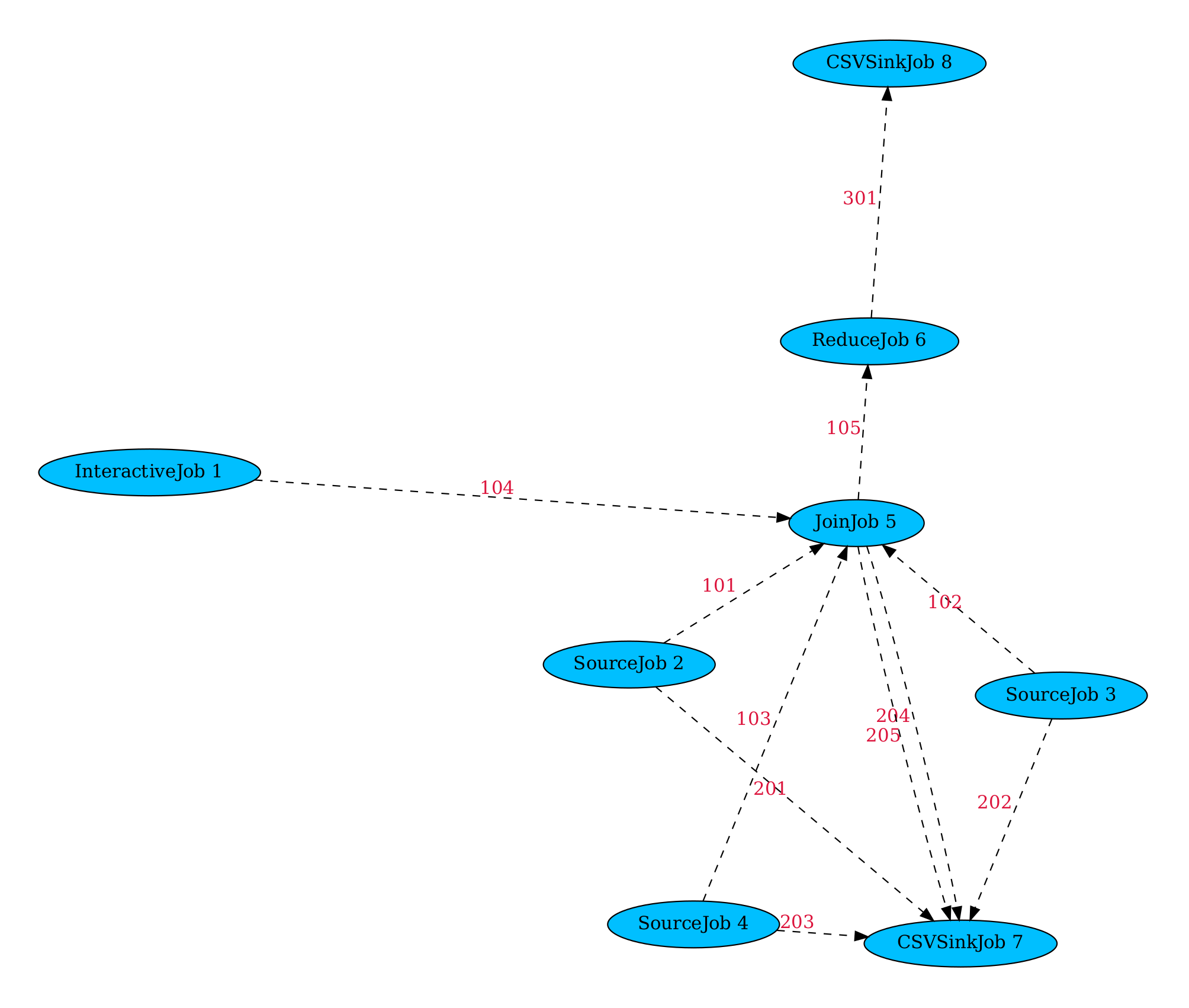 version4
You can find some additional networks we played around during development in the concept folder of the git repository.
Controlling allocation
When you want to control where you job is allocated there are multiple ways intersecting at different points.
DEFAULT_NODE
Starting of with DEFAULT_NODE.This is a class attribute of a job and can be overridden.
FISSION will always try to allocate the job to the node with the given ip first.
If this fails, due to be node being full or not active, FISSION will continue with its normal allocation process using groups.
Example
class MyJob(PythonJob):
    DEFAULT_NODE = "192.168.4.4" # Set the nodes ip here
GROUPS
This is a class attribute set both in jobs and nodes. It allows you to create groups containing jobs and nodes. A job will only be allocated to a node being part of the same group(s).
Example
class MyNode(BaseNode):
    GROUPS = ["HAS_MIC", "ALL"]

class MyJob(PythonJob):
    GROUPS = "HAS_MIC"
    ...
There are 2 groups which serve a special purpose:
ALLis the default groups each job and node is part of, if not changedLOCALis a special groups for local jobs
In the above example MyNode serves the groups HAS_MIC and ALL, implying a node instantiated from this class has a physical microphone attached.
As it is still part of the ALL group it still serves all “normal” jobs.
In this example MyJob needs a microphone to work properly and therefore is only part of the HAS_MIC group.
Lets say MyJob does not need a microphone but would prefer one.
class MyJob(PythonJob):
    GROUPS = ["HAS_MIC", "ALL"]
    ...
Now MyJob is part of both HAS_MIC and ALL.But as order matters FISSION will first try to find a node part of HAS_MIC and only if none is found, will fall back on the next group.
This can be done with as many groups as you wish.
If DEFAULT_NODE is set and you only want you job to be allocated to this specific node, you may also set it to an empty list ([]) to raise an AllocationError if the default node is not available.
preference
This is a method you can define within your job.
It is called with a list of NodeInfo objects.
These are representations of the actual nodes containing information like cpu usage or connection quality.
You can implement your own algorithm to decide which node should be picked.
Just return the according NodeInfo object.
For an example and more information see Use preference method from jobs.
Tips
When facing many jobs with similar default nodes, groups or preference it can be useful to create a MixIn or a job class to inherit from.
Example
class MicMixIn():
    DEFAULT_NODE =  "192.168.4.4"
    GROUPS = "HAS_MIC"

class NeedsMicJob1(MicMixIn, PythonJob):
    def run():
        # ...
        pass

class NeedsMicJob2(MicMixIn, PythonJob):
    def run():
        # ...
        pass